Free Attendance Sheet Templates (Excel & PDF)
Templates are the right starting point for most teachers. They're free, they require no setup, and they work immediately. This page gives you three ready-to-use formats: an interactive daily tracker, a monthly overview with percentage tracking, and a clean printable sheet. It also covers the COUNTIF formula that makes spreadsheet tracking actually useful, and what to do when templates start creating more work than they save.
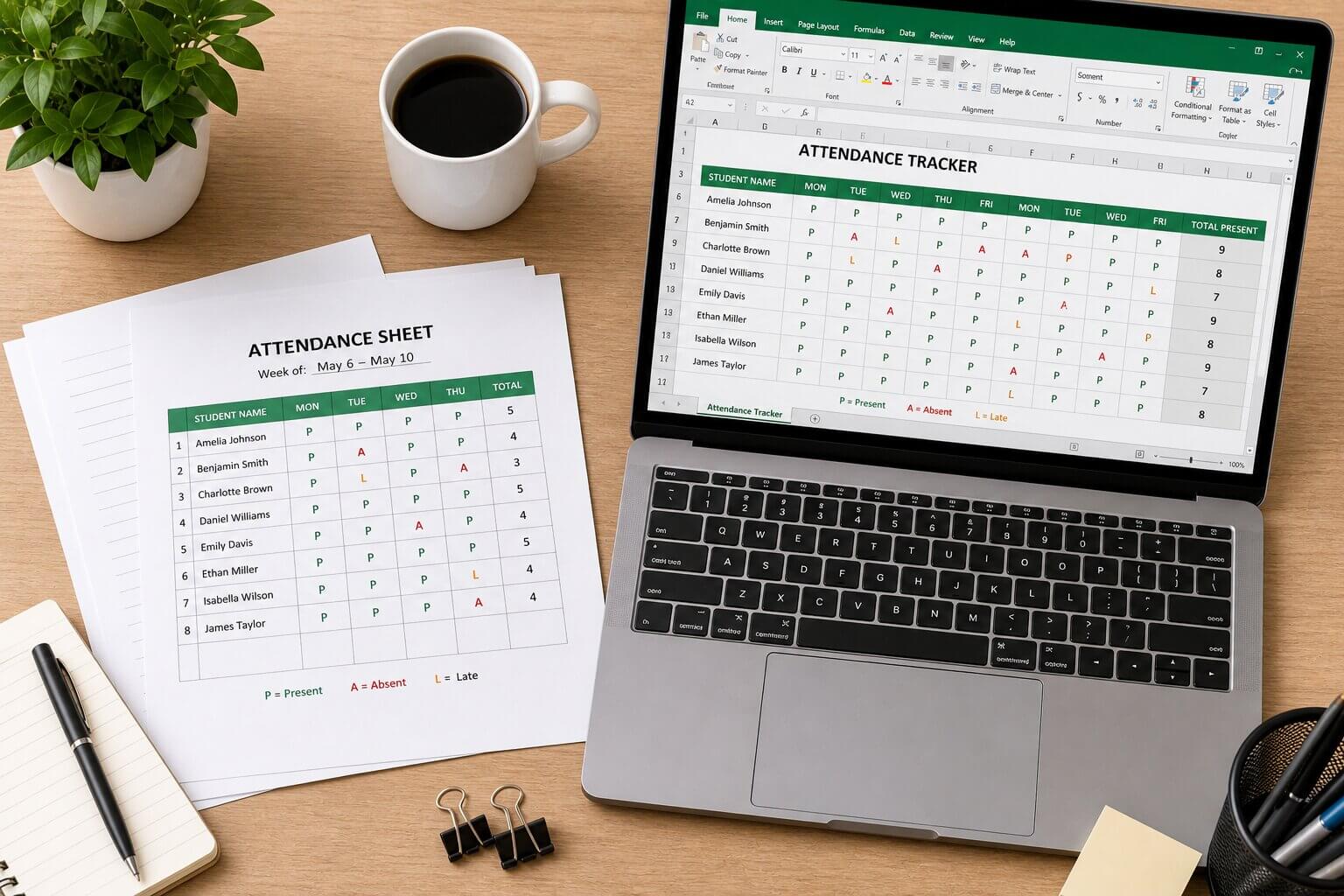
Templates are the right starting point. The question is how long they stay that way.
The templates
Three formats below, each suited to a different situation. Use whichever fits, or start with the basic daily sheet and graduate to the monthly tracker once your class is established.
Template 1: Daily attendance sheet
Enter your class name, teacher name, and session dates below. Click each cell to toggle between Present and Absent. Rates calculate live. Download generates a fully formatted CSV that opens directly in Excel or Google Sheets with color-coded columns and a formula row.
Daily Attendance Sheet
Configure, mark attendance, then download your spreadsheet.
Template 2: Multi-period attendance tracker
For tracking attendance across a full term, semester, or any custom period. Configure your class details and session count, mark attendance for each student, and download a fully structured Excel file with attendance totals and percentage formulas embedded in every row. Leave any session blank to mark it as cancelled: those sessions are excluded from the rate calculation.
Multi-Period Attendance Tracker
Configurable period, session count, and student count. Downloads with live COUNTIF formulas.
Template 3: Printable attendance sheet
For classrooms without devices, or when you want a signed physical record. Fill in your class details below, choose how many student rows you need, and hit Print. The sheet is optimized for A4 and US Letter paper, prints cleanly with no browser chrome, and includes a signature line and session summary at the bottom. Use "Save as PDF" in the print dialog to get a PDF file.
Printable Attendance Sheet
Configure below, preview live, then print or save as PDF.
The COUNTIF formula: how to make your spreadsheet actually useful
A spreadsheet without formulas is just a digital piece of paper. The single formula that makes attendance tracking in Excel or Google Sheets genuinely functional is COUNTIF. Here's how to use it properly.
Assume your attendance data is in columns B through M (one column per session) and your student names are in column A, starting at row 2. Each cell contains either "P", "A", or is blank (for cancelled sessions).
Attendance percentage (sessions held only)
This formula counts the number of "P" entries and divides by the total number of sessions that actually ran (ignoring blanks). Put it in column N for each student row:
=COUNTIF(B2:M2,"P") / (COUNTIF(B2:M2,"P") + COUNTIF(B2:M2,"A"))
Format the cell as a percentage. This ignores blank cells so cancelled sessions don't count against students.
Flag students below a threshold
To highlight any student with attendance below 75%, add this in the column after the percentage. It returns a warning text you can filter on:
=IF(N2<0.75,"Below threshold","")
Combine with conditional formatting (red fill on cells containing "Below threshold") for a visual alert that's easy to scan.
Where templates genuinely break down
Templates are honest tools: they do exactly what they're designed for and nothing more. The problems start when you need more than they were built to provide.
Everything stays manual
Every session requires you to open the file, find the right date column, and enter data for each student. There's no shortcut. If you're tired, distracted, or running late, entries get skipped and your data quietly becomes unreliable.
Errors accumulate silently
A missed entry doesn't announce itself. It just skews your percentages. A formula that broke two weeks ago looks identical to one that's working. You only discover the problem when you need the data for something important.
Data lives in isolation
Your attendance is in one file. Grades are somewhere else. Billing is in your head or an email thread. Every time you need a complete picture of a student you're assembling it manually from multiple places.
Reports require work
Generating a clean attendance summary for a parent, a client, or an end-of-term review means formatting the spreadsheet, copying data, and building a document manually. There's no export button. Every report is a mini project.
None of these are fatal limitations for a small, simple setup. They become serious problems when your class grows, your sessions multiply, or billing enters the picture. The template itself isn't the issue: the absence of a connected system around it is.
When to move beyond templates
The clearest signal is when you're spending more time maintaining the tracking system than you are using the information it produces. If you're fixing formulas, reformatting columns, or manually building summaries on a regular basis, the tool is working against you.
A dedicated tool like ClassAttendee handles the things templates can't: attendance rates that calculate automatically from the moment you start marking sessions, a Reports tab that generates a clean PDF or Excel export in under a minute, and a billing system that connects directly to attendance so per-session charges are logged the moment you mark a student present. There's no separate invoice calculation at the end of the month.
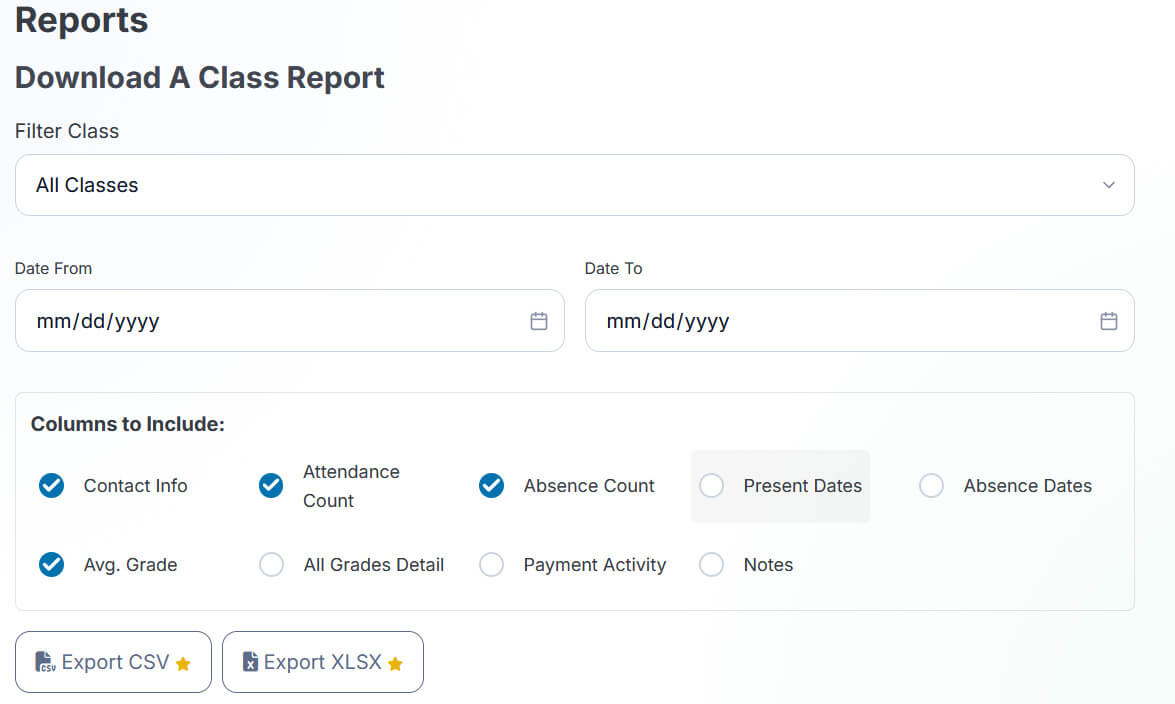
ClassAttendee's Reports tab generates a formatted export in seconds. No manual formatting required.
The free plan covers up to 25 students and 5 classes with no time limit, so you can run a full class through it before committing. If you're currently on a spreadsheet, the Smart Import tool brings your student list over in about 15 minutes.
Frequently asked questions
Yes, and for most teachers Google Sheets is actually the better choice. It's cloud-backed automatically, accessible from any device, shareable with a link, and supports the same COUNTIF formulas as Excel. The only advantage Excel has is richer conditional formatting options and slightly better performance with very large datasets, neither of which matters for typical class sizes.
Leave the cancelled session column blank for all students. The COUNTIF formula above divides by the count of P entries plus A entries, so blank cells (cancelled sessions) are excluded from the denominator entirely. This means a student who attended 8 out of 8 sessions that actually ran gets 100%, regardless of how many sessions were cancelled.
Insert a new row inside the existing student range rather than adding one at the bottom. If you add at the bottom, any SUM or COUNTIF ranges that reference specific row numbers won't include the new student. Inserting within the range extends those references automatically. After inserting, fill in "A" for all past sessions the student missed (so their historical rate reflects reality), then mark normally going forward. Copy the percentage formula from any adjacent row into the new student's rate cell.
Yes. In both Excel and Google Sheets you can lock specific cells or ranges. In Google Sheets: select your formula columns, right-click, choose "Protect range," and set it so only you can edit them. In Excel: select all cells, format them as unlocked, then select only the formula cells, format them as locked, and enable sheet protection under the Review tab. This lets you and anyone you share the file with enter P/A data freely while keeping the formulas intact.